

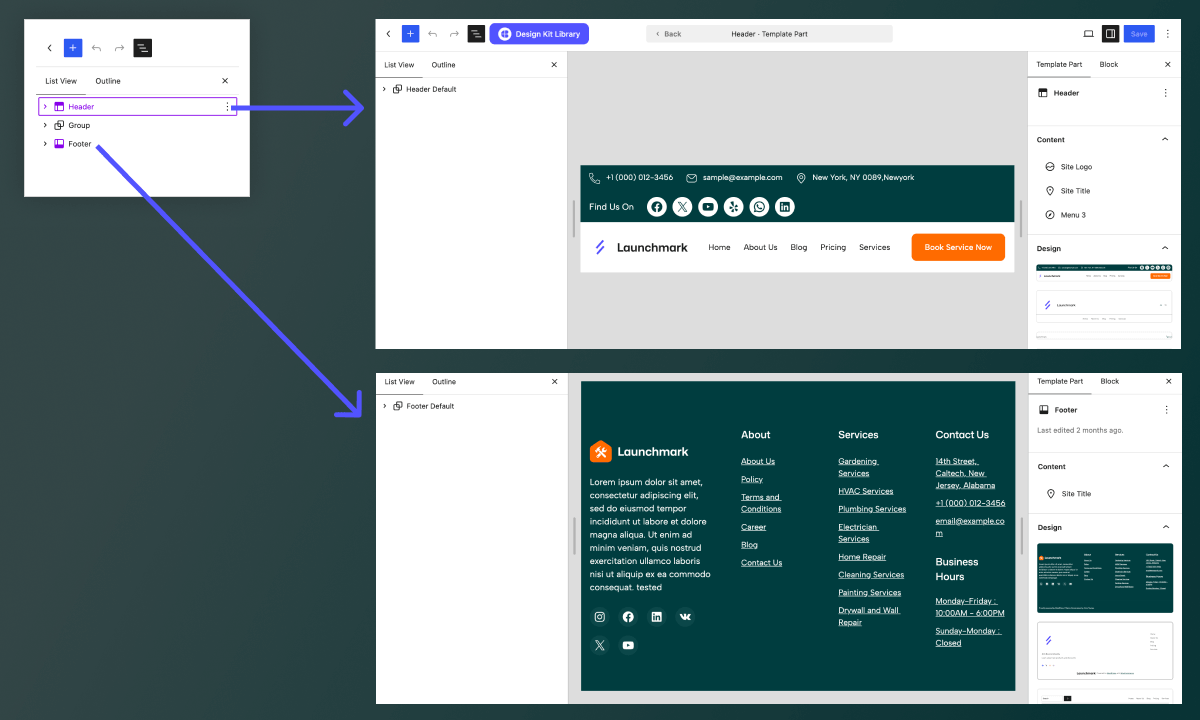
You’ve activated a block theme, opened Appearance → Editor, and now you want to change something simple: the logo, navigation, spacing, or footer links.
With a classic WordPress theme, you may have looked for those settings in the Customizer. With a block theme, the process is different. Your header and footer are usually managed as template parts inside the WordPress Site Editor.
The good news is that you can customize them visually, without editing theme files or writing PHP.
This guide shows exactly how header and footer editing works, what you can safely change, how template parts fit into the rest of your site, and what to do when your changes don’t appear where you expect them to.
If you want the broader picture first, see our complete guide to WordPress Full Site Editing.
Can You Edit a WordPress Header and Footer Without Code?
Yes, if your site uses a block theme, you can generally edit the header and footer through the Site Editor without modifying theme code.
Go to:
WordPress Dashboard → Appearance → Editor
From there, open Patterns and look for Template Parts. Depending on your WordPress version and theme, you may see Header and Footer areas containing the template parts provided by your theme.
The Site Editor is available when a block theme is active. Block themes use blocks for areas such as the navigation, header, content, and footer.
This means your header isn’t necessarily a special piece of theme code that you need a developer to modify. It can be a collection of ordinary WordPress blocks arranged as a reusable site section.
What Is a Header or Footer Template Part?
A template part is a reusable section of a block-based website.
Headers and footers are the most common examples because the same structure normally appears across many pages.
For example, a website header might contain:
- Site Logo
- Site Title
- Navigation
- Search
- Call-to-action button
- Social links
A footer might contain:
- Site Logo
- Short description
- Navigation links
- Contact information
- Social icons
- Copyright text
Instead of rebuilding those blocks on every page, the theme can place them inside a template part and reuse that part across multiple templates.
WordPress describes template parts as reusable structural areas such as headers and footers. When a template uses a template part, changing that part can update the corresponding area wherever that template part is used.
That distinction is important because it explains one of the biggest advantages of Site Editor customization: you can make one structural change instead of repeating the same change across individual pages.
How to Edit a WordPress Header
The exact interface can vary slightly depending on your WordPress version and block theme, but the general workflow is straightforward.
Step 1: Open the Site Editor
From your WordPress dashboard, go to:
Appearance → Editor
You need an active block theme for the Site Editor to provide the full site-editing experience.
Step 2: Open Template Parts
In the Site Editor, open Patterns and locate Template Parts.
Find the site’s Header template part.
Depending on the theme, there may be more than one header design available.
Step 3: Open the Header
Select the Header and choose the option to edit it.
You’ll now be working with the blocks that make up the header rather than editing an individual page.
You may see a structure similar to:
Header
→ Group
→ Site Logo
→ Navigation
→ Button
The actual structure depends on the theme.
Step 4: Select the Element You Want to Change
You can select individual blocks and modify their settings.
For example, you might:
- Replace the site logo
- Change navigation items
- Add a search block
- Change typography
- Adjust spacing
- Change colors
- Add a button
- Rearrange elements
- Change alignment
- Add or remove blocks
The Site Editor supports the same block-based approach across templates and template parts, giving you a visual way to modify the site’s structure.
Step 5: Save the Changes
When you’re happy with the header, select Save.
Because the header is a template part, the change can affect every template that uses that particular header.
This is why you should think about a header as a site-wide component, not simply something attached to your homepage.
How to Change a WordPress Header Logo
Changing the logo is one of the most common header edits.
Open the Header template part and select the Site Logo block.
From the block settings, you can adjust the available logo options provided by WordPress and your theme.
You can also control related presentation settings such as size and alignment, depending on the block and theme configuration.
One useful characteristic of the Site Logo block is that it represents site-level information rather than being ordinary page content. WordPress’s theme blocks include Site Logo, Site Title, Site Tagline, Navigation, and Template Part blocks specifically for building site structures.
If you want to change the logo everywhere, changing the appropriate Site Logo block in the header is usually much more practical than editing individual pages.
How to Edit WordPress Navigation in the Header
Navigation is often part of the Header template part.
Select the Navigation block inside your header.
From there, you can manage the menu structure and adjust its presentation using the available block settings.
For example, you might want to:
- Add a page
- Remove an outdated link
- Reorder menu items
- Add a submenu
- Change alignment
- Adjust spacing
- Change typography
- Add a mobile-friendly menu behavior supported by the theme and block
The important thing to remember is that you’re editing the navigation as part of the site’s overall structure.
If you want to understand how navigation fits into the larger FSE workflow, it’s useful to think of the header as one reusable component inside a template rather than as a standalone page element.
How to Change Header Colors, Fonts, and Spacing
You don’t always need to change individual blocks one by one.
The Site Editor’s Styles system can control site-wide design settings such as typography, colors, and layout. Block themes expose these controls as part of the block-based editing experience.
For example, imagine your header contains:
- Site Logo
- Navigation
- Button
You could individually style each block, but if your goal is to establish consistent typography or colors across the site, global Styles may be a better place to start.
This gives you an important distinction:
Use local block settings when you want a specific element to look different.
Use Styles when you want a broader design rule to apply consistently.
That distinction can prevent a common FSE mistake: making dozens of small local changes when one global style would have been more appropriate.
How to Edit a WordPress Footer
The footer uses essentially the same concept as the header.
Go to:
Appearance → Editor → Patterns → Template Parts → Footer
Open the Footer template part and edit its blocks.
A typical footer might contain:
- Site Logo
- Site Title
- Navigation
- Paragraph
- Social Icons
- Contact information
- Copyright information
You can add, remove, reorder, or style blocks according to what your theme allows.
For example, a small business website might use a footer like:
Company Logo
Short description of the business.
Services | About | Contact
Phone number · Email · Social links
Copyright information
The advantage is that you can build this structure once and reuse it across the site’s templates.
How to Add a New Section to the Footer
Suppose your existing footer contains only a copyright line, but you want to add a three-column layout.
You can edit the Footer template part and add a Group, Columns, or other suitable blocks.
For example:
Column 1
Logo and short description
Column 2
Services links
Column 3
Contact information
You can then adjust the layout, spacing, typography, and colors using the block settings and the site’s Styles.
The exact blocks available and the design options you see can depend on the active theme.
Can You Have Different Headers or Footers?
Yes, a block theme can provide different template parts and patterns for different situations.
This becomes useful when a website has more complex requirements.
For example, you might want:
- A standard header for most pages
- A simplified header for a landing page
- A different footer for a campaign section
However, don’t create different versions simply because you can.
Every additional variation creates another component that you may eventually need to maintain.
For most small business websites, blogs, portfolios, and standard company sites, one well-designed header and footer is often enough.
Header vs Template vs Template Part: What’s the Difference?
This is one of the most important concepts to understand when working with the Site Editor.
Template
A template defines the structure used for a particular type of content or page.
Examples include:
- Single Post
- Page
- Archive
- Search
- 404
Template Part
A template part is a reusable structural section used inside templates.
Examples include:
- Header
- Footer
- Sidebar
Pattern
A pattern is a predefined collection of blocks that can be inserted into a design.
Patterns can also be used for headers and footers, including as options for replacing template parts.
A simple way to remember it:
Template = overall page structure
Template part = reusable section of that structure
Pattern = reusable block arrangement
Keeping these concepts separate makes the Site Editor much easier to understand.
Why Did My Header Change on Every Page?
This is usually not a problem. It’s often exactly how the template-part system is intended to work.
If multiple templates use the same Header template part, editing that template part changes the header wherever it is used.
For example, your site might use the same header on:
- Homepage
- About page
- Services page
- Blog
- Individual posts
- Search results
Instead of storing six independent headers, the theme can use one reusable Header template part.
WordPress’s documentation specifically describes template parts as reusable areas and notes that changes can apply to templates using that part.
This is one of the biggest differences between editing a normal page and editing your site’s structure.
Why Isn’t My Header Change Showing Everywhere?
If you edited a header but don’t see the change on a particular page, don’t immediately assume WordPress is broken.
Check these possibilities.
The page may use a different template
Different content types can use different templates.
A particular page may therefore use a template with a different header arrangement.
The template may use another template part
A theme can provide multiple header variations.
You may have edited one Header template part while the page uses another.
You may have edited a local block instead
If you changed an element inside a specific template rather than the shared template part, the change may only affect that location.
Your theme may provide its own structure
Block themes have different template and template-part structures. WordPress provides the editing framework, but the theme determines much of the initial design and organization.
Common Mistakes When Editing Headers and Footers
1. Using a Classic Theme
If you don’t see Appearance → Editor, check whether you’re using a block theme.
The full Site Editor experience is tied to block themes.
2. Editing the Wrong Template
If you’re trying to change the site’s header, don’t start by editing the homepage template unless you specifically want a change limited to that template.
Look for the Header template part first.
3. Confusing a Template With a Template Part
A template controls a broader page structure.
A template part handles reusable sections such as the header and footer.
Understanding that relationship makes troubleshooting much easier.
4. Making Everything a Local Change
If your goal is consistency, consider whether the change belongs in Styles or the shared template part.
For example, changing the site’s primary font globally is different from making one button use a different font.
5. Creating Too Many Variations
Multiple headers and footers can be useful, but unnecessary variations can make a site harder to maintain.
Start with a clear structure and introduce variations only when there’s a real design or content reason.
How Block Themes Make Header and Footer Design Easier
The larger idea behind this workflow is that a block theme treats the website as a collection of editable components.
Instead of thinking:
“I need to modify the theme’s header code.”
You can think:
“I need to edit the Header template part.”
That shift is what makes the Site Editor approachable for non-developers.
You can visually work with the same fundamental building blocks used elsewhere in WordPress while still controlling site-level structures.
For developers and theme creators, these components also have a clear underlying structure. WordPress block themes store template parts in the theme’s parts directory, while templates can include those parts through the Template Part block.
You don’t need to understand that code-level architecture to edit a header visually, but knowing it exists helps explain why the system behaves the way it does.
Where CozyThemes Fits Into This Workflow
A block-based theme can give you a starting structure, but the quality of the editing experience also depends on the design system and ready-made components provided by the theme ecosystem.
CozyThemes focuses on block-based WordPress website building, with block themes, patterns, starter designs, and Cozy Blocks designed to work with the WordPress block editor and Site Editor workflow.
That can be useful when you don’t want to start a header, footer, or other website section completely from an empty canvas.
The practical benefit isn’t that you have to use a particular design. It’s that starting with a prepared block-based structure can reduce the amount of repetitive layout work before you begin customizing the site for your own brand.
For someone building a business website, for example, you could start with a prepared header containing the logo, navigation, and call-to-action, then adjust the typography, spacing, colors, and content to match the business.
The important part is still understanding the underlying Site Editor workflow. Once you understand templates, template parts, patterns, and Styles, you’re not locked into the original design.
A Simple Header and Footer Editing Workflow
For most websites, this process is enough:
- Activate a block theme.
- Open Appearance → Editor.
- Go to Patterns → Template Parts.
- Open the Header or Footer.
- Identify the blocks you want to change.
- Make the content or layout changes.
- Use Styles for broader design changes where appropriate.
- Save the template part.
- Check several pages that use the template part.
- If a page looks different, check which template or template part it uses.
This workflow is much easier once you stop treating the header and footer as isolated page elements.
They are reusable parts of the site’s structure.
Final Takeaway
Editing a WordPress header or footer no longer has to mean opening theme files or searching through PHP.
With a block theme, you can use the Site Editor to work directly with the visual structure of your website. Headers and footers are commonly handled as template parts, which allows the same structural section to be reused across multiple templates.
The key is understanding what you’re actually editing:
- Styles control broader design rules.
- Templates control page structures.
- Template parts control reusable sections such as headers and footers.
- Patterns provide reusable block arrangements.
Once those pieces make sense, the Site Editor becomes much less intimidating.
And that is the larger idea behind WordPress Full Site Editing: instead of treating the theme as something you simply install and accept, you can work with its structure directly through blocks and visual editing.
If you’re ready to understand how all of these pieces fit together, continue with our complete guide to WordPress Full Site Editing.
Leave a Reply